Amy Winter
Exporting Metadata and Content from DSpace
A report from the 2016-2017 LoboVault migration at the University of New Mexico
By Amy E. Winter, MPA
Abstract
The University of New Mexico initiated a digital institutional repository in approximately 2009 using the DSpace open-source repository software. By 2015, faced with deteriorating performance from the DSpace installation, library administration decided, rather than performing an extensive upgrade to DSpace, to purchase a subscription to bepress's hosted product, Digital Commons, and migrate all existing DSpace content—more than 23,000 documents—to the new platform. The migration was completed between June of 2016 and June of 2017. Because I could not find much explicit documentation on obtaining and processing data exports from DSpace (version 5.1), this article explains the available export options, my decision-making process, and the broad workflow steps I used to complete the migration. Since bepress provides extensive documentation of their batch uploading process, the importing of content into Digital Commons is not described here.
Project Description
At the beginning of the project, I evaluated the content exported via two different options in DSpace. In most cases collections were individually exported, except where items were to be organized differently in the new repository. I wrote a Python processor that walks through the exported document folder structure and converts the XML metadata and the bitstream (file) URL into CSV. I then processed and cleaned the CSV files in Excel, in preparation for batch import into Digital Commons.
Obtaining Metadata from DSpace
UNM's installation of DSpace provides two simple, front-end interface based methods for exporting data.1 (Your results may vary depending on the specific options selected for your installation.)
Option 1. Metadata Export
The first method is to export the metadata using the "Export Metadata" option in the "Context" section of the sidebar of the community or collection you would like to export. This option is available to logged-in administrators with appropriate permissions.
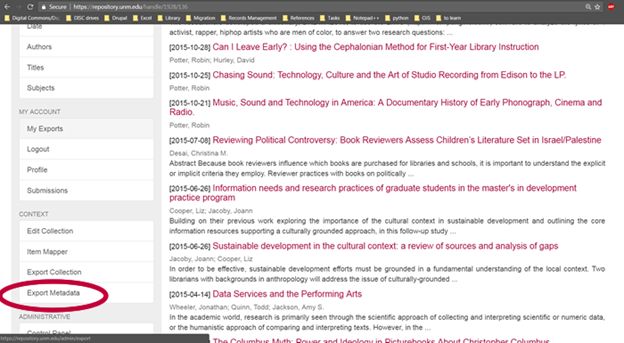
This provides a metadata output in csv format and can be helpful as a snapshot of the contents of the collection. Be sure to import this file into Excel using the wizard in the Data tab, and in Step 1 of the wizard, choose as the File origin: "65001: Unicode UTF-8," to avoid problems with character set mismatches.
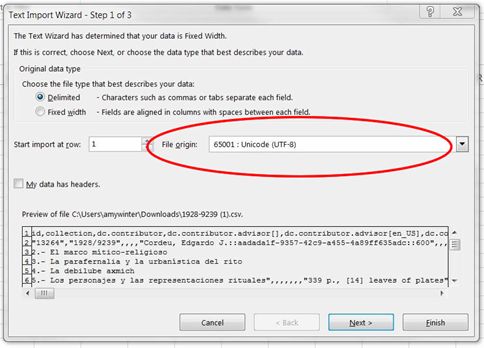
If you open the export with Windows or other encoding in Excel, you may see errors with special characters:
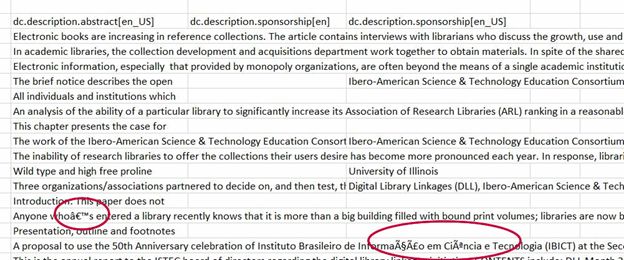
The major drawbacks to the metadata export, at least for UNM's installation, is that it included a number of fields we didn't want to migrate; it didn't contain some fields that we wanted (for example, provenance); and in some cases contained multiple fields for the same data.
Manually combining duplicate columns (in the above example, "dc.description.sponsorship[en]” and “dc.description.sponsorship[en_US]”) for large collections becomes tedious. Google's OpenRefine may better automate the cleaning of this export, but because I already had extensive Excel experience2, I chose not to spend the time learning another application. For these reasons, for the most part I did not use this option to export metadata, preferring the export obtained in Option 2.
Option 2. Collection/Community Export
The second option for exporting data from DSpace is to use the "Export Collection" or "Export Community" feature, also available in the "Context" section of the sidebar.
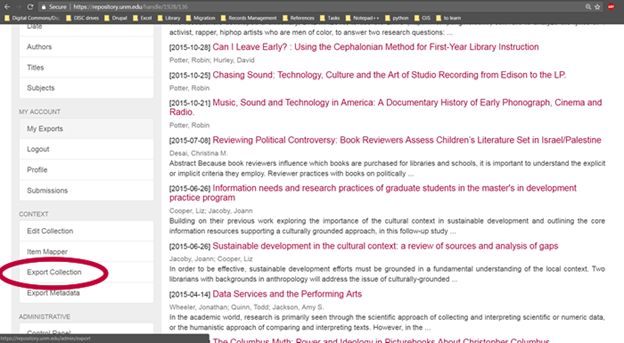
This option generates a zip file containing one folder for each item in the collection. If you export a community, a folder for that community is created, containing a folder for each collection within the community, which contains a folder for each item.
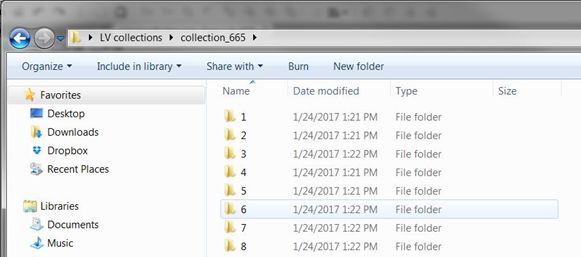
Each item folder contains a number of files pertaining to the item.
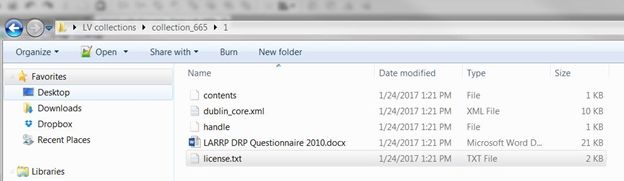
In this example, the "contents" file contains a reference to the license. The "handle" file contains the unique identifier for the item in the repository. The Word file is the actual document3, and "license.txt" is the text of the license the user agreed to upon uploading the item. Along with the copy of the document(s), the most relevant file in this batch is "dublin_core.xml" which I will return to in a moment.
The first task for any script is to parse the exported folder structure. There are many ways to do this, but since I know a little Python, I chose to use the os library. In a few simple steps I could walk through the folder structure and extract the content I wanted into a list.
Python also has multiple libraries for parsing XML, but unfortunately the output from DSpace, in the dublin_core.xml file, was not well-formed XML.
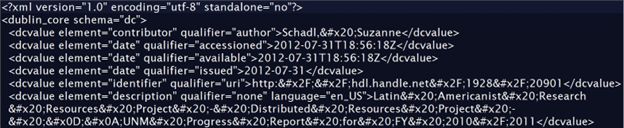
All of the tags are
Instead, I decided to use the Python library BeautifulSoup, designed for parsing HTML tags, and then output two lines of CSV per collection item (using the csv and cStringIO libraries).
The first line of delimited content shows the element and the qualifier from the
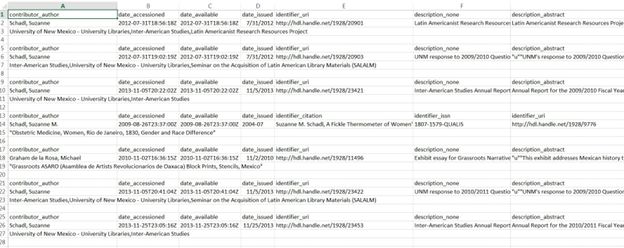
This method leaves a lot of cleanup to do in Excel:
- Cells are not always aligned and occasionally there are multiple columns for the same data type.
- Once cells are aligned correctly, all but the top “header” rows must be removed (a few steps or a macro can be used in Excel to automate this).
- Subject headings and URLs to the documents were handled separately.
With good Excel skills, or facility with OpenRefine or another data cleaning tool, this was an acceptable solution for someone with beginning to intermediate programming skills. Except for the largest and most complex collections, I was usually able to clean 2-3 collections per day, transfer the data and links to the Digital Commons batch upload sheets, and upload them to the new repository.
Code
The code referred to in this article (and an example XML file) is available on GitHub.
Conclusion
After evaluating the structure and content of the metadata exports available from UNM's installation of DSpace, I decided to use the Collection/Community export feature, process the exported XML metadata with Python, and then I cleaned the resulting output in Excel to ready it for batch uploading to Digital Commons.
Acknowledgements
Thanks are due to Jon Wheeler, Data Curation Librarian at UNM, for assistance in understanding how to access the data export options in DSpace.
Notes
1 Jon Wheeler has written a more complex Python script whose output is almost completely ready for upload into Digital Commons. However, it requires the Digital Commons upload spreadsheet to be available before it can process the DSpace export. Generally, I preferred to have a better understanding of the exported metadata content by working with it directly, before building publication structures in Digital Commons.
2 A good resource for quickly improving basic Excel skills, if needed, is the course “Excel 2013: Shortcuts” from lynda.com, if you have access to it.
3 The fact that the export folders contain copies of the documents is useful. This provides a local backup of your repository contents (albeit one too cumbersome for use in any but the most extreme circumstances). It is also possible to navigate through the folder structure to quickly access and add supplemental files to migrated repository items once they are created in Digital Commons via batch upload.